


WEEX Stock Spot 2.0 starter guide
Dear WEEXers,
WEEX Stock Spot 2.0 is now live, bringing you tokenized stocks and ETFs! Trade popular stock and ETF tokens directly with USDT—no traditional brokerage account required. Explore the global markets, all on WEEX.
I. What is WEEX Stock Spot 2.0?
WEEX Stock Spot 2.0 is a new stock token product, distinct from third-party offerings like Ondo and xStocks. These assets are referred to as "WEEX stock tokens".
WEEX stock tokens are synthetic assets that track the price performance of specific stocks or ETFs. Trade popular stock tokens such as NVDA and AAPL directly with USDT—no external brokerage account required. Start with just 5 USDT and trade with greater flexibility.
Unlike actual stocks, WEEX stock tokens do not represent ownership of the underlying shares. Orders are not routed to Nasdaq, NYSE, or external brokers, and holders do not receive shareholder rights such as voting, meeting participation, or dividends.
The actual execution price is determined by the matched price of the corresponding WEEX stock token pair.
II. Key advantages of WEEX stock tokens
- Trade stocks directly with USDT
- No brokerage account needed. Trade popular stock tokens with USDT and access global markets.
- Start with just 5 USDT
- Trade from as little as 5 USDT, making high-priced stocks more accessible with less capital.
- Deep liquidity, low slippage
- Powered by global market makers, deep order books, price protection, and fast execution to reduce price impact on large trades.
- Market insights, all in one place
- Track prices, charts, and market moves alongside trending topics, earnings reports, and research.
- 0 fees on select assets
- Stock tokens have a separate fee structure, with limited-time 0-fee trading on select assets for lower trading costs.
- Stay ahead of market trends
- Explore selected assets tied to trending themes around Elon Musk, Donald Trump, Jensen Huang, and more.
- Fast listings for trending assets
- Access a growing range of stocks and ETFs across AI, semiconductors, memory, and other trending sectors.
- Built for security at every level
- Powered by distributed architecture, a 1,000 BTC Protection Fund, smart risk controls, and manual reviews to safeguard your assets and trades.
- Selected ETFs across trending themes
- Trade a diverse range of leveraged, regional, and sector ETFs covering memory, semiconductors, and more.
III. How to trade WEEX stock tokens
This guide walks you through the key steps—from finding stock trading and completing the initial confirmation to viewing market data, placing trades, and managing orders.
Before you start:
|
APP
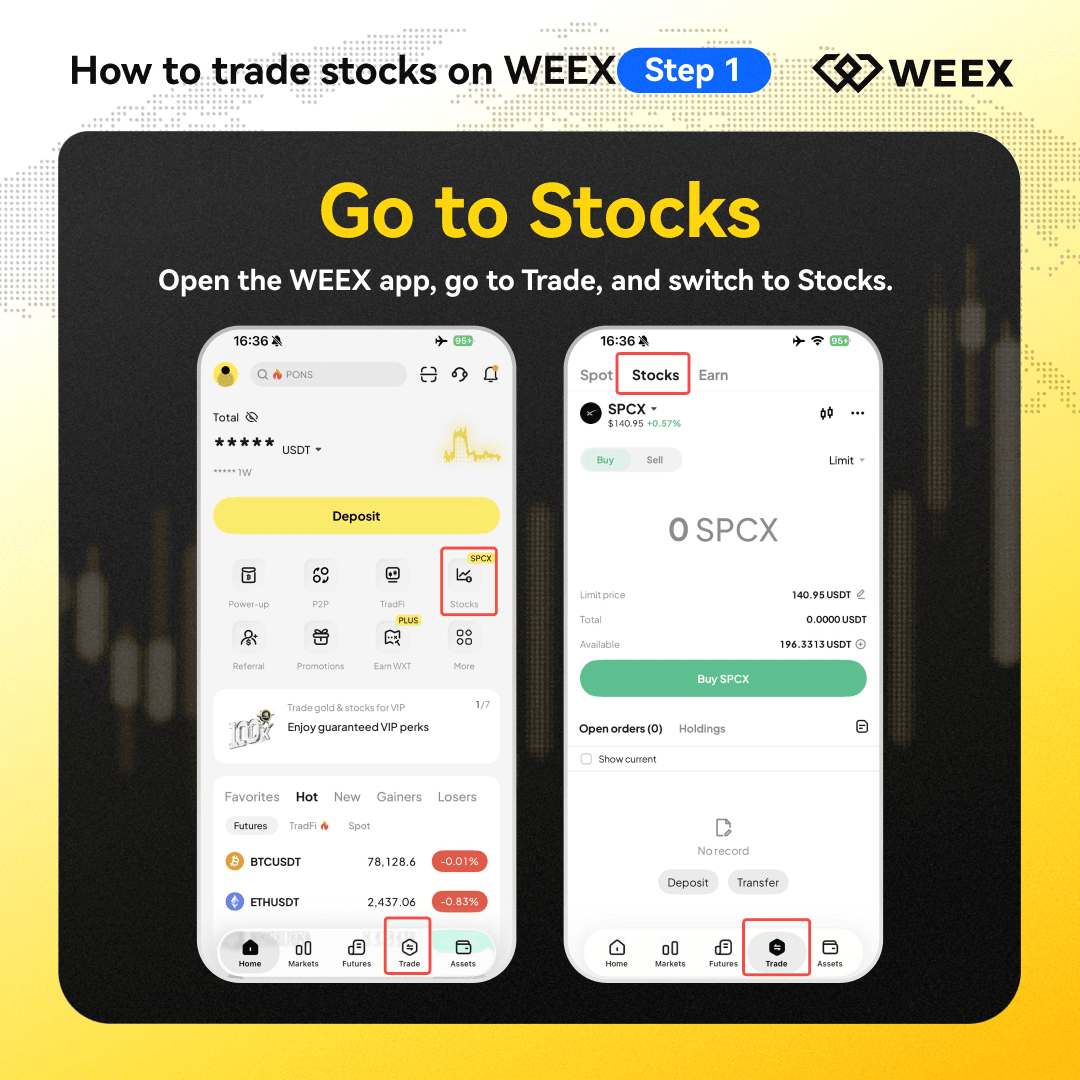
Step 1: Access stock token trading
Open the WEEX app and tap the “Stocks” shortcut to enter the trading page. Alternatively, tap “Trade” at the bottom, then select “Stocks” at the top to access the stock trading page.
Step 2: Search and select a stock token
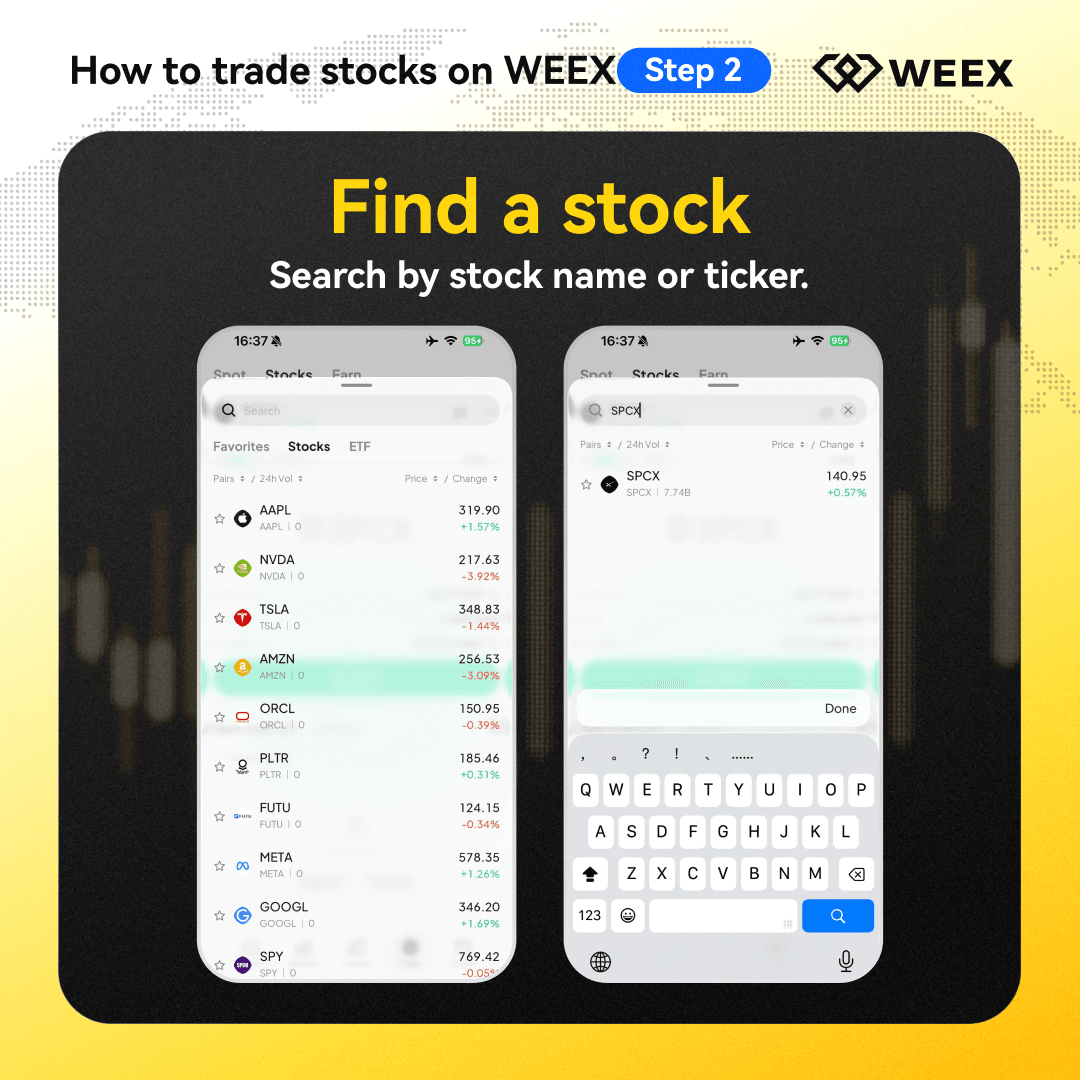
On the "Stocks" page, you can:
- Search by stock token name or ticker.
- Browse the stock token list to see available stocks.
- Select a stock token to open its trading page.
Step 3: Fund your account
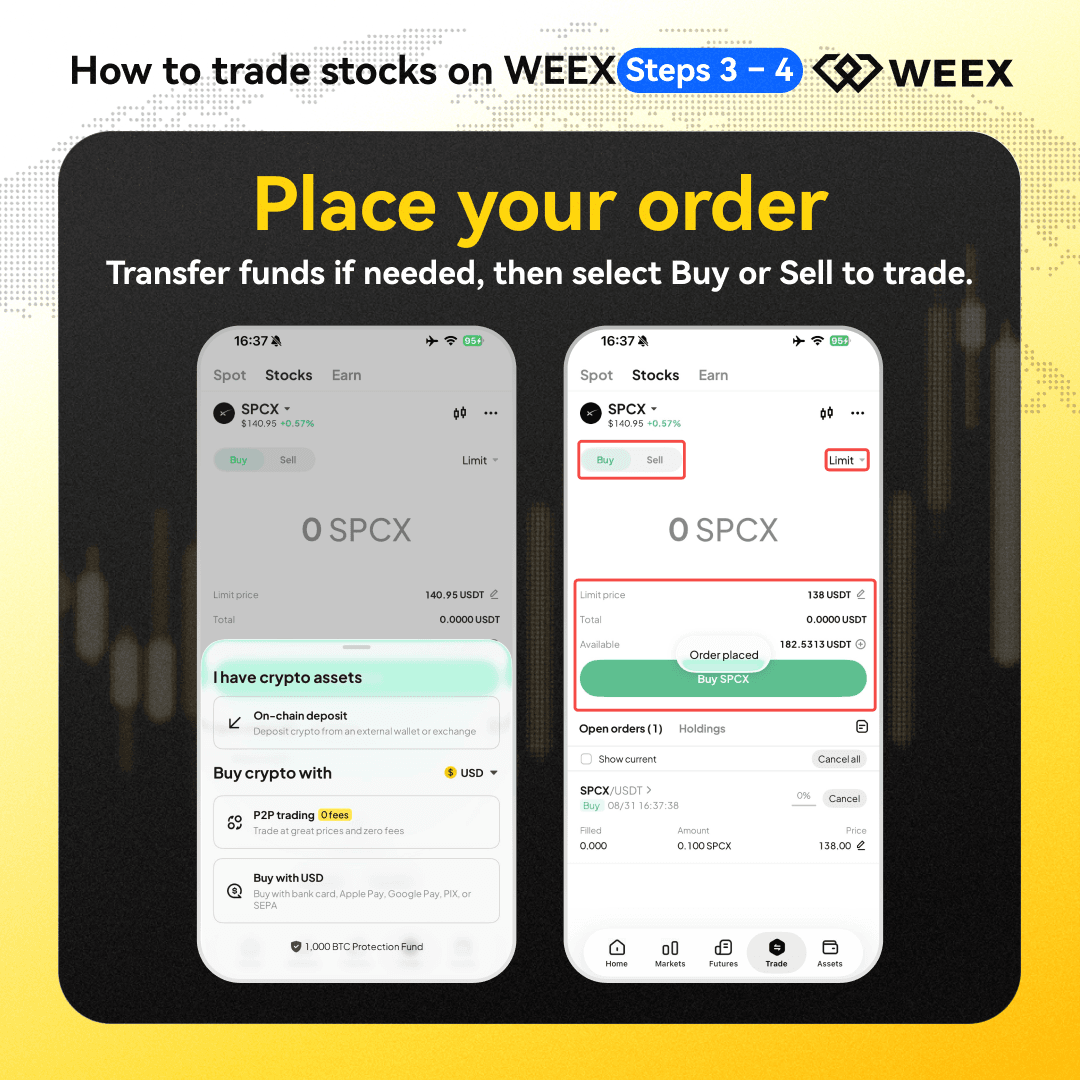
If your "Available" balance is insufficient, Deposit or transfer more funds on the order page.
Once you have enough available balance, you can place your order.
Step 4: Buy or sell stock tokens
On the stock trading page:
- Select "Buy" or "Sell".
- Choose an order type, such as "Limit" or "Market".
- Enter the amount and price.
- Review the order details and available balance.
- Tap the button at the bottom to place your order.
For your first trade, familiarize yourself with these fields:
- Limit price: Your desired execution price.
- Total: Estimated trade amount.
- Available: Your current available balance.
Once everything looks correct, submit your order.
Step 5: View and manage orders
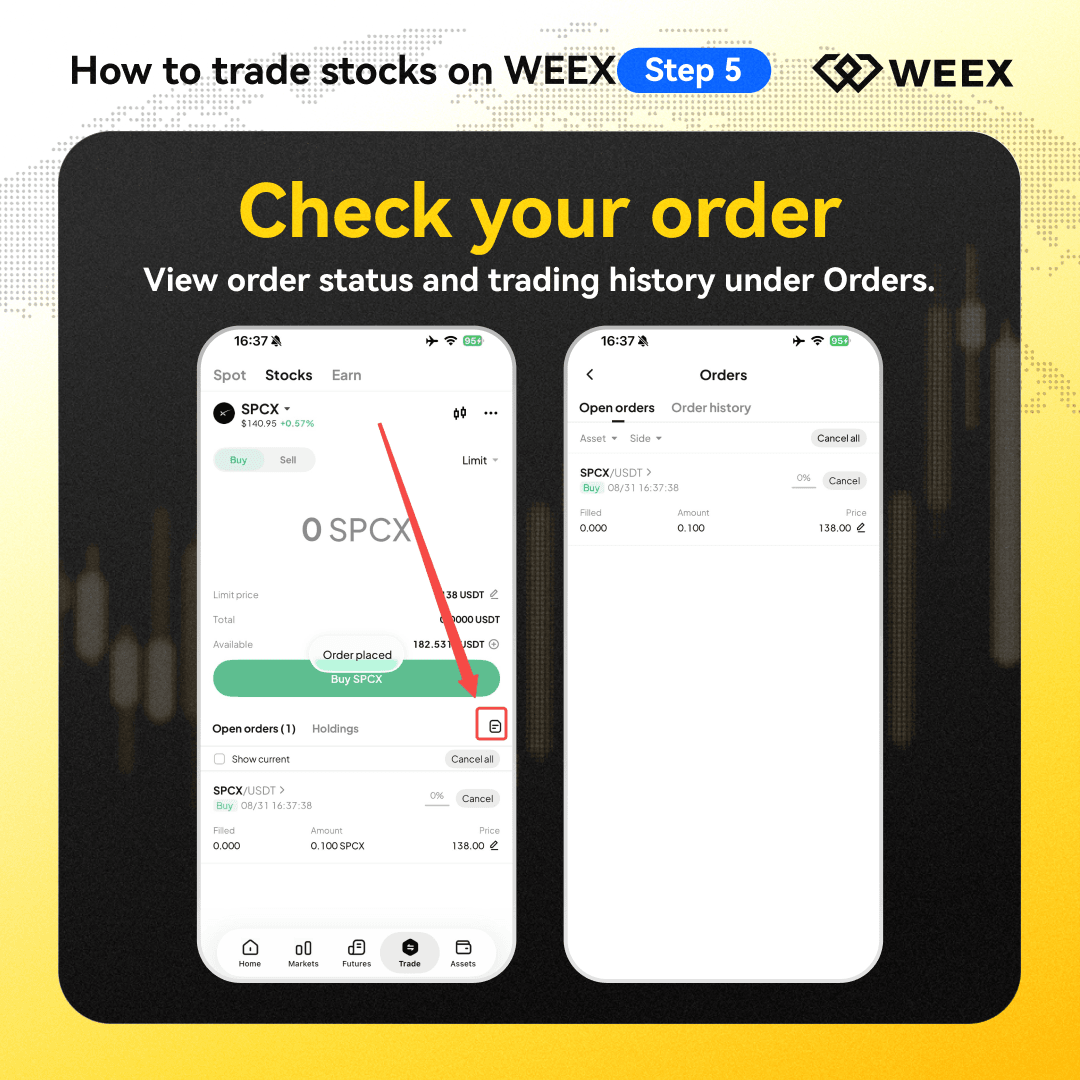
After placing an order, go to "Orders" to check your order status.
- Open Orders: View orders that have not been fully filled.
- Check the side, price, amount, and fill progress.
- Use "Cancel" if you no longer want to wait for the order to fill.
Web
Step 1: Search for a stock token
On the WEEX web stock token trading page, search by stock name or ticker at the top.
You can also browse the stock list and select the stock token you want to trade.
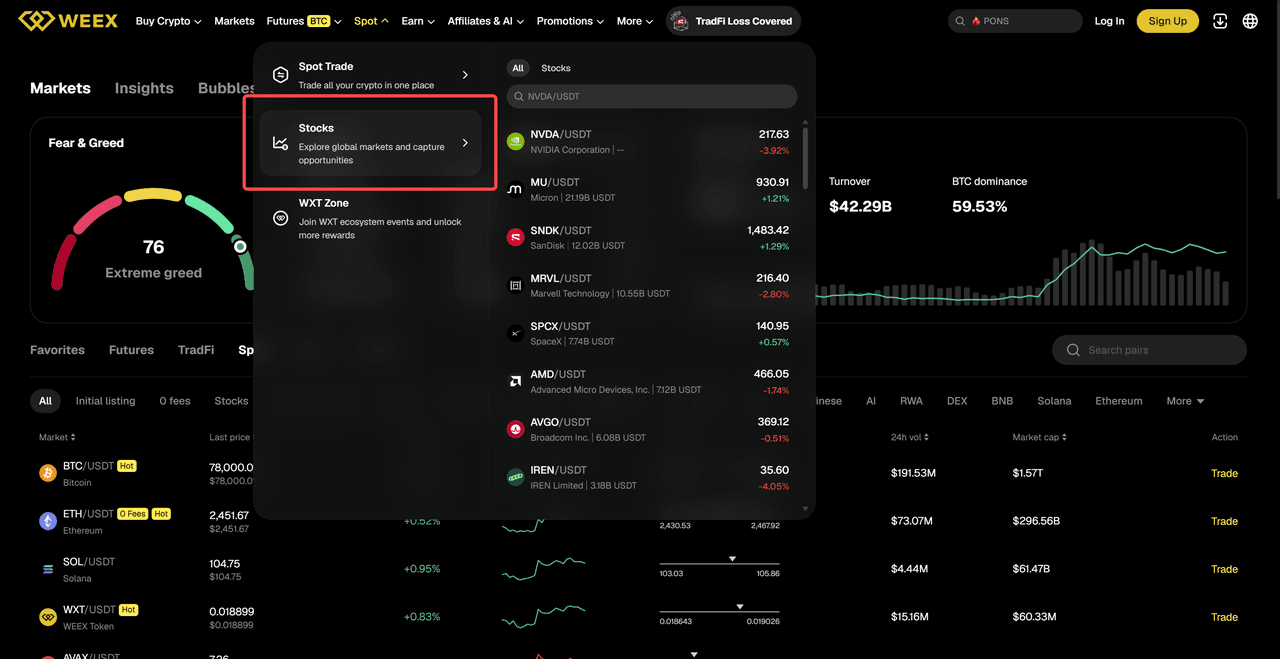
Search for and select a stock token on web
Step 2: Fund your account
If your "Available" balance is insufficient, On-chain deposit or transfer more funds.
Once you have enough available balance, you can place your order.
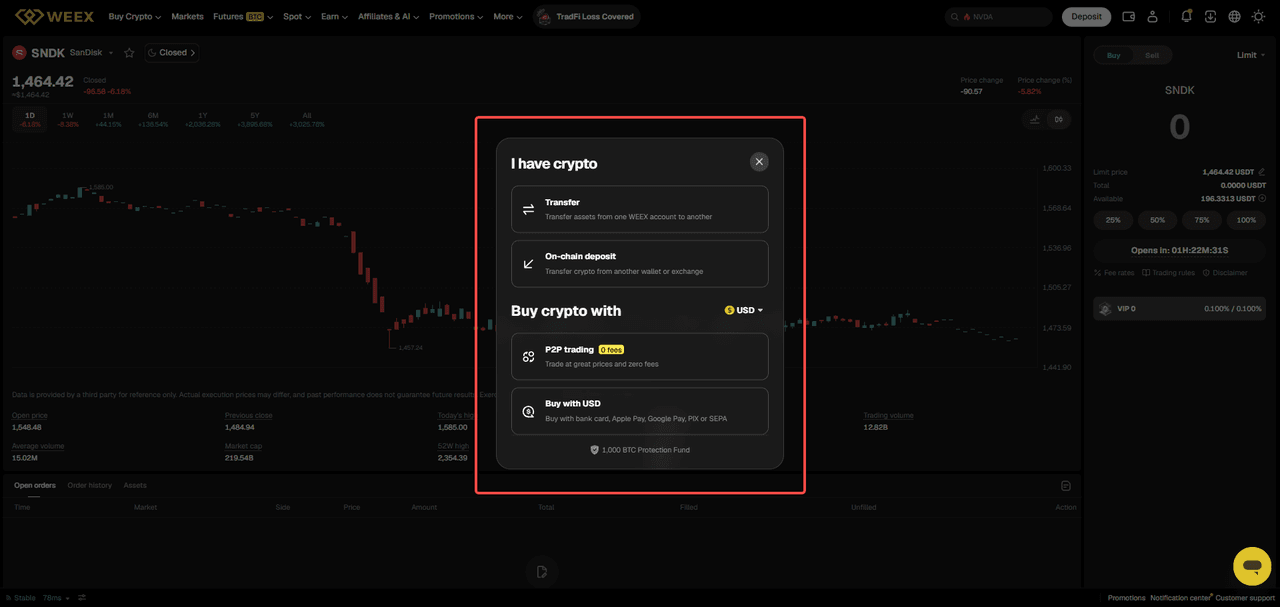
On-chain deposit or transfer funds on web
Step 3: Buy or sell stock tokens
On the stock trading page, review the market data, price, and price changes. In the order panel on the right:
- Select "Buy" or "Sell".
- Choose an order type.
- Enter the price and amount.
- Review the order details.
- Submit your order.
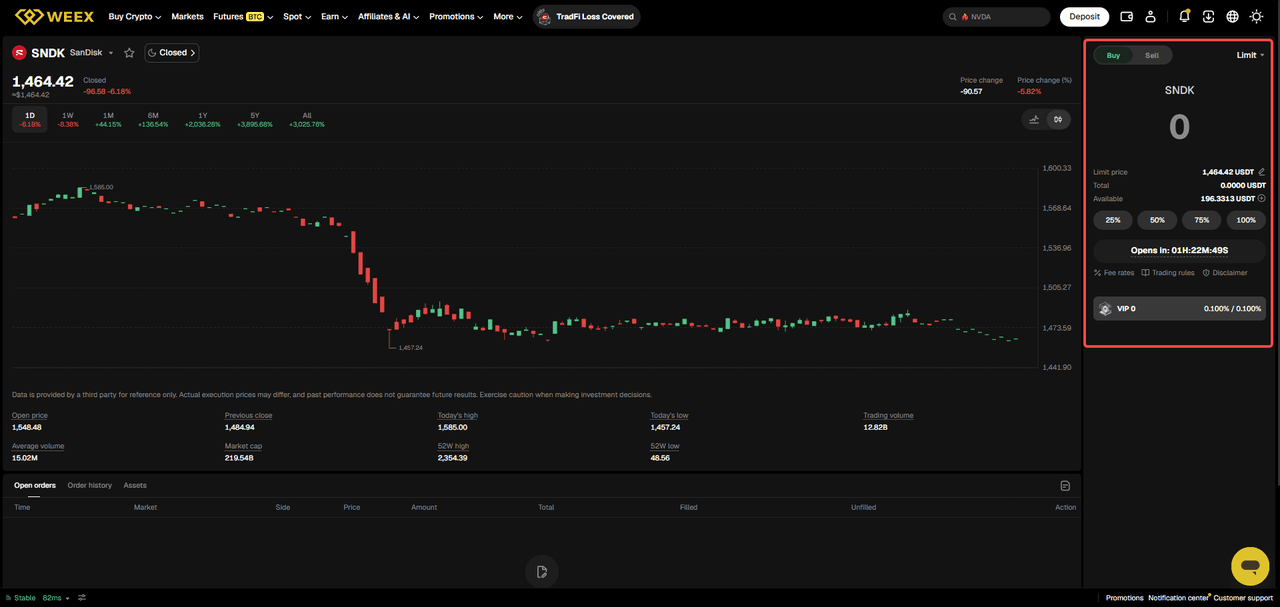
View market data and trade directly on web
Step 4: View orders and holdings
At the bottom of the trading page, you can view:
- Open orders: Unfilled orders.
- Order history: Past orders.
- Holdings: Current holdings.
For more details, go to "Stock orders" to view and manage your order history.
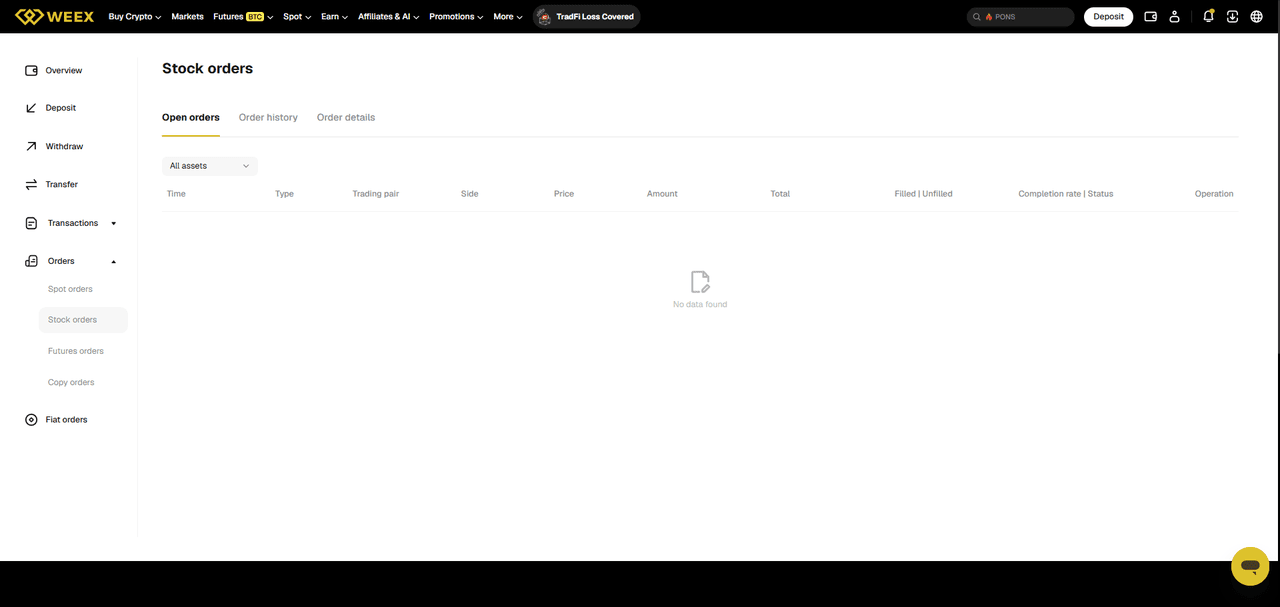
View stock orders on web
Trading page fields
- Buy/Sell: Select whether you want to buy or sell. Double-check before placing an order.
- Limit: Places an order at your specified price, giving you more control over execution.
- Market: Places an order at the best available market price, prioritizing faster execution.
- Available: Your available balance for trading. Deposit or transfer funds if needed.
- Open orders: Shows orders that are still waiting to be filled. Filled orders will appear in your order history.
- Insufficient balance: Your available balance is too low to place the order. Deposit or transfer funds first.
Notes
- For faster execution, check market liquidity. For more price control, use a limit order.
- If you're new to stock trading, start with a smaller amount to get familiar with the trading flow and order status.
- If the trading page won't load, terms can't be accepted, or your balance isn't showing, check the app version, network connection, and fund transfer status.
- If prices are moving quickly, double-check the side, price, and amount before placing your order.
Understanding order status
- Unfilled: The order has been placed but not filled yet. You can wait or adjust the price.
- Partially filled: Part of the order has been filled, while the rest is still pending.
- Canceled: The order has been canceled and will no longer be filled.
- Order history: View past orders and execution details for reference.
Risk notice
- Stock token prices fluctuate with the market and may move significantly over short periods.
- Trading activity varies by market session, and orders may take longer to fill when liquidity is low.
- Screenshots in this guide are based on the current test version and should not replace your own assessment of the asset, price, and risks before trading.

Gainers


